How to Sanitize Your Devices Properly

Your hands might be clean, but when did you last clean the devices that you (and maybe others) touch so often? Here are some tips:

Turn off and unplug everything first. It’s easy to drag something off a table or simply short-circuit something with moisture.

Include all external peripherals that you touch, obviously the keyboard and the mouse.

Look for specks on the monitor screen. Uncaught sneezes and coughs often hit the monitor. Be careful, screens are very fragile.

Turn keyboards upside down. Very very gently shake loose any crumbs. If you have a compressed air can use it gently. If not – do not be tempted to blow in it, breath is too moist and not clean.

Clean using a lint-free cloth only – not a dishcloth, wet wipes, tissues or dusters. Use sparingly a cleaning solution of 70% isopropyl alcohol, applied to the cloth not directly to the device. Tap water is too wet (doesn’t evaporate quickly) and only moves the germs around.

Clean wrist rests and other areas of the desk.

Remove and wash your mobile phone case thoroughly. Dry very well before reusing obviously.

Clean earphones carefully with a cloth and alcohol cleaner.

Dispose of the all cloths between cleaning, or wash them properly in suitable cleaning fluids.

Peripherals for Online Meetings

After moving from Windows to Mac recently, I wanted to reuse some of my peripherals that I use for online meetings. I thought I would share my setup, as I would have found this helpful so it’s possible others would too.

The challenge here is the MacBook has only two USB-C ports on it, and they’re already used for the following basics:

  • Power input (yes, no separate power input!)
  • Ethernet for faster internet than WiFi
  • HDMI for separate monitor

Seems Apple expects users to leverage Bluetooth for peripherals. Unfortunately my windows machine had a webcam and headset with regular USB cables, and I have no budget to replace them.

After a few combinations (and false starts) I found success with:

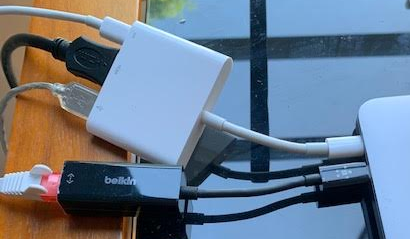
  • USB Webcam plugged into the USB port in an Apple USB-C Multiport (as the webcam requires power too). This ensures all important visuals for much richer interactions with my colleagues. The webcam is also setup to be the main microphone input – a job it is more than capable of. As a home worker background noise is not a problem.
  • The Macbook sound output/speakers is set to “system” (ie the built in speakers). Reason being – as a home worker I don’t need to restrict the sound I make. Also the Macbook speakers are plenty good enough.

This setup works nicely, meetings are rich and clear, and the Macbook seems happy enough.

A bonus is my old headset can now live in my laptop bag (along with a USB-C to USB adapter) ready for conference calls away from the office. Also no annoying unplugging stuff before going out!

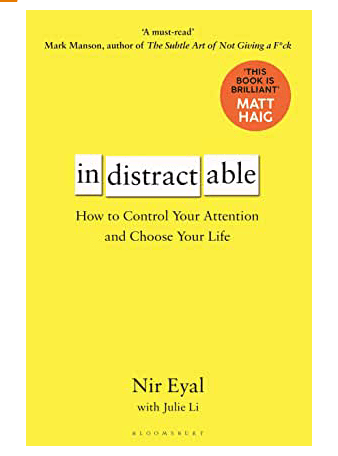
Book Review: Indistractable

This is the new title from Nir Eyal, the author of the well-known ‘Hooked’ which uncovered the research behind how social media (and other tech products) keep their users engaged. This new book took him five years of research and essentially offers advice on staying focused.

The book does a great job of explaining the Human Psychology behind much of what we all experience every day. Nir uses simple terms to cover many academic studies and uses lots of relatable examples.

The essence of the book is down to a neat set of four practices to help avoid distraction. Without going into the detail they deserve, these are:

  • Removing External Triggers – controlling gadgets, environment and people.
  • Controlling Internal Triggers – managing the day and tasks properly.
  • Make Pre-commitments – make pacts to help you stay on task.
  • Make Time – set times for the enjoyable things.

Sweeping insights that get made throughout the book include the proposition that our over-use of technology is actually helping us avoid pain. That might be having specific interactions, honest conversations or trying to work in a dysfunctional culture.

As such busying ourselves with invented tasks (like meetings and email) allow us to do something which looks like progress but often isn’t.

As you’d expect there is a lot about using settings on gadgets and leveraging proper calendar time-boxing to really get things done.

The book clearly focuses on jobs that include a decent amount of solo tasks generating creative output – like writing, programming, or design. That said I don’t think anyone can ignore advice on reducing distraction and this interesting and accessible book is a treat.

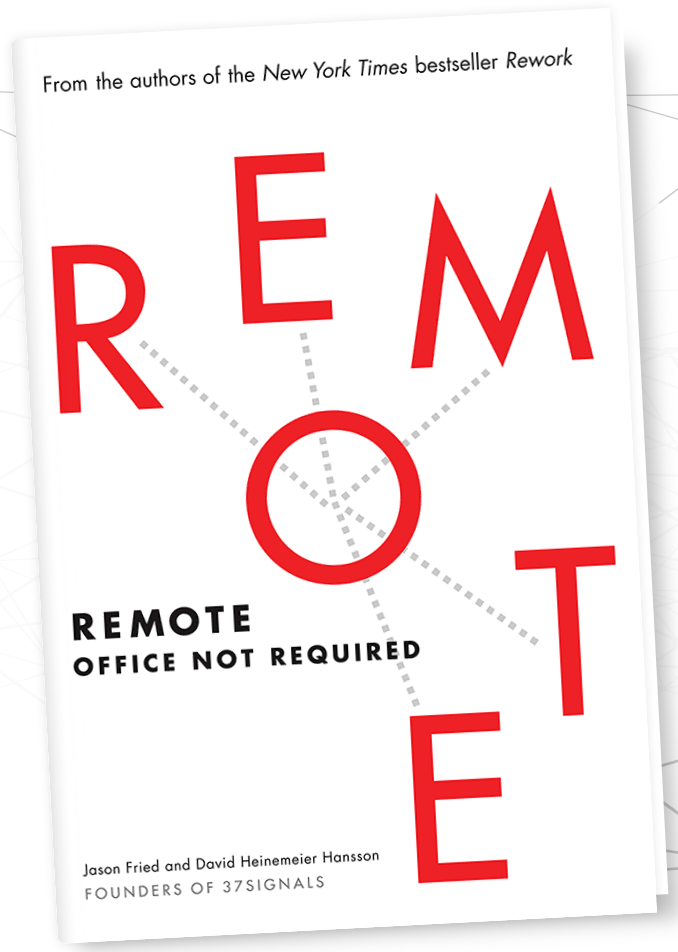
Book Review: Remote – Office Not Required.

Written by the founders of 37 Signals, a US software company, they’ve been using remote staff for years and so had a good amount of experience-based insights to share on the topic.

Generally I found the book focused more on people and companies considering or starting home-working, rather than those already doing it. That said, there are some very good points and tips in there.

Another positive is that the book is broken into 8 chapters, and each one into very short lessons. There are a total of 72 lessons, and each is only a few pages long (in the audio book lesson are 1-4 minutes only). Other books these guys have written are in a similarly digestible format.

Here are a few specific highlights that I found:

  • Some nice statistics and records on the growth of home working.
  • They recommend overlap in timezone for about 4hrs, so opportunity to speak and collaborate is not too narrow and days go by without progress.
  • Interesting insights like office-bound people state they’re “most productive” out of hours – getting in extra early or staying late. When people get together sustained focus drops.
  • Measure performance based on work quality vs time-at-desk. This said, I would add to actually measure time too – because homeworkers regularly put in very long days (and sometimes weekends) to produce the best work – but that’s unsustainable, unhealthy and will end in burnout.
  • Benefits of homeworking includes health, well-being, hobbies, family and friendships. Also benefits to the environment and personal finance.
  • Using cafes (or co-working spaces) and supporting hobbies to resolve challenges including isolation, overwork, health and home distractions.
  • “Great remote workers and just great workers”. It’s not a silver bullet to change an attitude or productivity.
  • Advice on working with customers/clients from a remote location.
  • Advice on hiring remote staff.
  • A few communication tips (via writing) when in person nuance is eliminated.
  • Recommended technology tools and resources, although a little outdated now.

So overall I liked the book, and on this topic it’s one of the better resources out there. I’ll endeavor to review more going forwards and compare.

Working From … the cafe

Some of the advice homeworkers often get includes ‘getting out of the house‘, such how to cope during school holidays. As such, here are my tips for actually achieving work in a cafe.

Visit the Bathroom First. Be ready even before you order. Once you’ve settled you should not leave your gear unsupervised unless you want it to go. I wouldn’t even trust a ‘nice-looking’ person to keep watch. As such packing everything up is a pain, plus you might loose your seat (tip: leave a book/pen/paper on the table and your jacket on your chair).

Check the WiFi. Oftentimes it’s not quite as advertised (e.g. free) or doesn’t actually work very well. Barista’s are not going to give you technical support, and the 3rd party provider is unlikely to help immediately. Consider what kind of work you’ll be doing and consider including some off-line tasks for such a situation. Sure, you might have a mobile data connection, but you probably don’t have unlimited use.

Check for Noise. I use (noise-cancelling) headphones to reduce audible distractions, and never try to do conference calls … I find there is just too much (unexpected) noise, making it hard for everyone (including you) to hear. It also looks unprofessional when others can hear espresso machines and clicking crockery in the background. I retreat back to the car if I need to speak to someone.

Check the Opening/Closing Times. Ensure there will be enough time to complete your tasks. Not every cafe opens early and closing times vary wildly in my experience.

Check access to Power. If you’re planning a full day you’ll need to recharge your machine and possibly phone. Does the place have outlets you can use, and where are they?

Review: Stand-up Desk

After 4 weeks of trailing a stand-up desk (the Sit-Stand Workstation from Contour) I’d like to share my experience and offer some observations.

Don’t Spend Too Much. My model is on Amazon for around £160 ($180), which is considerably cheaper than full desks with electronic pneumatics (at £500+). The Contour requires a reasonably solid desk upon which to mount it, and my desk has a glass top too, but the end result is actually very solid. Obviously it’s only the weight of the monitor, keyboard and mouse that it’s holding … although the thing itself is pretty heavy.

Mix It Up. I have not yet managed to stand all day, but think that a variety is a good thing. I try to get 50% of my time standing as a minimum. I seem to like to take calls sitting, and do work standing. I am also currently trailing the Pomodoro Technique (article to follow), which means lots of short breaks and works well with a sit-stand mix.

Stand Properly. Just like sitting, a good standing posture is important. If you have a habit of putting all your weight on one leg, or in odd foot positions, then just make sure you don’t stay in a bad position for too long. I seem to naturally shuffle every few minutes.

Keep Drinks Safe. Because I am raising and lowering part of my desk it makes sense for liquids to be aware from the moving area.

Longer Cables. As I put together the desk it was clear that power and other cables would be stretched when I raise the desk. Just something to look out for, else things can get dangerous.

Manage Breaks. When you’re already out of the chair, you might find yourself wandering off, away from work. Most of the time this is a good thing, as long as you don’t get more snacks and do return fairly quickly.

Keep Going. The first week the thing mostly remained in sit position. Week two saw more standing, and so did week three. So it was a gradual adoption and required a little getting used it. Now I am going to keep using it for sure.

Working From … the garden

As summer shows its face on occasion you might be tempted to try to get some sun while working. Here are some tips.

Partially Outside. I am lucky as my office has double-doors out to the garden, meaning I don’t need to move to feel like I am outside. When it’s warm (and there are not too many bugs around) it’s nice.

Sunlight. While most laptop screens are reasonably visible in sunlight these days, being in direct sun eventually gets uncomfortable. Use a shaded spot or a sun umbrella.

Comfort. Don’t be tempted to use a sunlounger – you’ll end up with neck or back ache. Drag a decent chair and table out if you can.

Music and Mowers. If you’re out then it’s likely others are too. This might mean weird background noise on conference calls and such. Consider taking them inside in peace.

Signal. Before you start make sure your WiFi signal is strong enough where you plan to setup.

Bugs. I have a ‘waspinator’- essentially a patterned cloth bag that resembles a nest and signals ‘occupied’ to visitors. Surprisingly it seems to work! You can also try a catcher – a sweet and sticky jar of liquid setup not far away from you that attracts (and holds) nearby wasps away from you. Similarly don’t take any sweet drinks or snacks out with you.

Avoiding Self Destructive Behavior

One big problem with working-from-home is temptation. We fill our home with nice things for our time off, and when these things are nearby it takes a will-of-iron to ignore the lure. Here are a few techniques I use:

Media. As my only permitted media while working- Radio works for me. It prevents me from messing with music playlists or other audio services often designed to keep you engaged (i.e. distracted). It’s either on or off, and I always stick to one ‘calm’ station too.

Lunch hour. Keep a period scared for taking lunch. Sure get something to eat but also do those bits-and-pieces that might tempt you away from work. This includes keeping household chores and exercise to that time slot.

Good Environment. Ensure your office resembles a work area. Try to keep anything ‘interesting’ or ‘fun’ away from your work area.

Make Commitments. Share your to-do list with your boss or another person you don’t want to let down. Do regular progress meetings with colleagues and set expectations on accomplishment. If you can’t do this consider using a habit-forming app, there are some good ones out there.

Good To-Do Lists. Try to make items on your list achievable. Consider the urgent-important classification and prioritize items. Try to think of anything that is not achievable in a day as a ‘mini-project’ and as such the whole thing is not a to-do list item, only the first stage is. Keep you to-do list visible, I still write in cheap (mostly freebies) notebooks, as it’s helpful to refer back sometimes.

Reduce Notifications. Turn them off – as much as you can. Silence your phone entirely and turn it face-down. Close email if you need to focus. Even consider turning off WiFi, if you can.

Don’t get Fired. Ultimately if you get distracted, your work will suffer. Eventually you boss will notice and that could spell disaster.

Moving from Windows to Mac – some tips and tricks.

Like many people, I finally took the plunge and replaced my aging Windows laptop with a shiny new MacBook Pro. I had delayed on this as couldn’t face the admin and logistics of resetting things up and (I am slightly ashamed to admit) learning the MacOS. Through this ‘journey’ I thought it would be nice to share a few things I encountered so far:

Keyboard. Why are @ and ” symbols the complete other side of the keyboard now? Maybe it’s a US key layout or something, but it’s annoying to get used to. Also, where is the home, end and even the delete keys? Backspace is there but editing text requires both directions. I found that control+d does delete … but it’s fiddly to get used to. I even tried plugging in my old keyboard but that was worse as it really didn’t like most of the non-letter keys. I could map function keys or combination presses, but its a pain.

Desktop. The Desktop concept isn’t quite the same – for example the menus weirdly disassociate itself with the application window. I am sure this is fine, I am just not sure why this is helpful.

Files. Without a File Manager (i.e. Windows Explorer) it proved hard to find anything that I didn’t copy to /Documents/ or another of the Finder favorites. I eventually worked out how to add the MacintoshHD (under Finder – Preferences from the menu bar) as a location and make finder fully show folders and files.

Command vs Control vs Option. The command button for most shortcuts is OK, but I had to print out a list to learn them (beyond basic cut-copy-paste etc). Not sure when I use the various left-of-spacebar buttons, while cntrl on Windows seemed logical. I also often used to use ‘minimize-all’ by right-click the Windows tray … on mac this is finger-twisting combo of Option-Command-H.

Installing Software. This seems to sometimes work completely, other times you get a package (pkg) file you then have to execute. Programs also don’t always appear under Applications in finder. Yet to discover consistency to suggest cause. I also found ‘crossover‘ which allows windows programs to run in a container on macOS … something I think I’ll avoid for now and learning to use some new tools – replacing things like notepad++, graphics apps, and my favorite IM client.

Display. My (old) additional display doesn’t have a HDMI port, but luckily I had a DVI-D to HDMI converter, so plugged that in. On startup it’s a bit of a pain to have to open the laptop lid, turn it on, login via the laptop keyboard, await recognition of the second screen, sometimes have to ‘Gather Windows’ using the System Preferences-Display, and finally close the laptop lid. Another weirdness on display is that on the Display system preferences page, if you press the Option button a hidden button to discover displays appears. Obviously this should occur automatically, but forcing this can be helpful. Weird buttons are hidden like this!

Docking. Oh how I wish I had a mac docking station! These kind-of exist but are crazy expensive – not sure why. In addition to painful startup process as above, it would be nice to docking-undock quickly when leaving in a hurry. Surely pulling and pushing on the ports every time will add wear.

Ports and Networking The keyboard and mouse are Bluetooth so we don’t need ports – but I still want to plug stuff in, but the macbook I have has only two USB-C ports (more expensive models have 4) and one is for power! So I got an Apple USB-C Digital AV Multiport Adapter. This gives me a HDMI port, a USB port, and a USB-C port. I also got a Ethernet-to-USB-C adapter too which I thought I could connect to the Multiport. After weeks of using wifi only I thought I really should get the Ethernet working. Further hours of messing about with the network software/config things were listed but remained inactive. I eventually discovered that my wiring setup simply doesn’t work and had to plug the Ethernet-to-USB-C directly into the second laptop port, and plug the power into the Multiport. Simple but far from obvious!


Working From … The Car

Sometimes you need to work when you’ve also committed to being somewhere else. Maybe your dad’s taxi or away on vacation – whatever the reason, being able to work from a car is helpful. As such here are a few tips I’ve found through trial and error:

Keep it Short and Infrequent. I cannot actually recommend trying to do too much ‘real work’ in a car. It is not healthy for your posture or especially productive, however the occasional conference call meeting works fine.

Don’t Drive and Demo. If you’re driving, don’t try to watch a screen-share or worse still attempt to demo something. It’s horribly dangerous and is just not worth trying (being illegal also). Either pull-over, ask to demo later on (once you’ve parked up), or simply reschedule. Also, once you’re stationary and using your mobile phone for conference calls, don’t forget to disconnect the bluetooth from the car.

Quiet Parking Space. Find a parking spot away from too much background noise. Nothing worse than distraction and others thinking you are not committed to your job.

Comfort. Ensure the space (if you can) is not in direct sunlight, as the glare can be tough on the eyes, plus in summer you soon get hot without air-con running. Opening windows/doors lets in too much background noise. Similarly in winter ensure the car is warm before you start, as it soon cools down with the engine (heating) off.

Discretion. Stay away from very public or high-crime areas. Visibly showing you’ve got computing equipment in your car could lead to a later break-in.

Personal Space. Having the ability to juggle devices is important … I use the passenger seat, with the chair all-the-way back, allowing enough space for laptop screen at a visible angle, phone in a cradle, and various other peripherals.

Internet. Don’t rely on sharing other peoples internet, especially if you’re attending important calls. You could pair with your phone to share connection, but it can be expensive and slow. I recommend a mobile internet dongle, they’re under-publicized, and plugs straight into your laptop USB port and magically works. It has a data SIM card inside so you pay a monthly (or top-up) fee – just like a mobile-ready tablet. It has a phone number assigned, but as a dongle clearly you can’t make calls. Amusingly I recently wanted to change my dongle plan, and the provider kept telling me to enter the two-factor authentication key they just texted … to my dongle! Frustrated I telephoned them and they told to slip the sim card into a mobile phone – obviously really. The dongle is my home internet backup plan too, meaning I don’t have to relocate if my home internet goes down.