Moving from Windows to Mac – some tips and tricks.

Like many people, I finally took the plunge and replaced my aging Windows laptop with a shiny new MacBook Pro. I had delayed on this as couldn’t face the admin and logistics of resetting things up and (I am slightly ashamed to admit) learning the MacOS. Through this ‘journey’ I thought it would be nice to share a few things I encountered so far:

Keyboard. Why are @ and ” symbols the complete other side of the keyboard now? Maybe it’s a US key layout or something, but it’s annoying to get used to. Also, where is the home, end and even the delete keys? Backspace is there but editing text requires both directions. I found that control+d does delete … but it’s fiddly to get used to. I even tried plugging in my old keyboard but that was worse as it really didn’t like most of the non-letter keys. I could map function keys or combination presses, but its a pain.

Desktop. The Desktop concept isn’t quite the same – for example the menus weirdly disassociate itself with the application window. I am sure this is fine, I am just not sure why this is helpful.

Files. Without a File Manager (i.e. Windows Explorer) it proved hard to find anything that I didn’t copy to /Documents/ or another of the Finder favorites. I eventually worked out how to add the MacintoshHD (under Finder – Preferences from the menu bar) as a location and make finder fully show folders and files.

Command vs Control vs Option. The command button for most shortcuts is OK, but I had to print out a list to learn them (beyond basic cut-copy-paste etc). Not sure when I use the various left-of-spacebar buttons, while cntrl on Windows seemed logical. I also often used to use ‘minimize-all’ by right-click the Windows tray … on mac this is finger-twisting combo of Option-Command-H.

Installing Software. This seems to sometimes work completely, other times you get a package (pkg) file you then have to execute. Programs also don’t always appear under Applications in finder. Yet to discover consistency to suggest cause. I also found ‘crossover‘ which allows windows programs to run in a container on macOS … something I think I’ll avoid for now and learning to use some new tools – replacing things like notepad++, graphics apps, and my favorite IM client.

Display. My (old) additional display doesn’t have a HDMI port, but luckily I had a DVI-D to HDMI converter, so plugged that in. On startup it’s a bit of a pain to have to open the laptop lid, turn it on, login via the laptop keyboard, await recognition of the second screen, sometimes have to ‘Gather Windows’ using the System Preferences-Display, and finally close the laptop lid. Another weirdness on display is that on the Display system preferences page, if you press the Option button a hidden button to discover displays appears. Obviously this should occur automatically, but forcing this can be helpful. Weird buttons are hidden like this!

Docking. Oh how I wish I had a mac docking station! These kind-of exist but are crazy expensive – not sure why. In addition to painful startup process as above, it would be nice to docking-undock quickly when leaving in a hurry. Surely pulling and pushing on the ports every time will add wear.

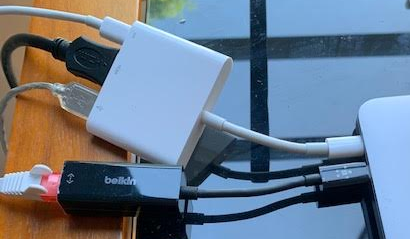
Ports and Networking The keyboard and mouse are Bluetooth so we don’t need ports – but I still want to plug stuff in, but the macbook I have has only two USB-C ports (more expensive models have 4) and one is for power! So I got an Apple USB-C Digital AV Multiport Adapter. This gives me a HDMI port, a USB port, and a USB-C port. I also got a Ethernet-to-USB-C adapter too which I thought I could connect to the Multiport. After weeks of using wifi only I thought I really should get the Ethernet working. Further hours of messing about with the network software/config things were listed but remained inactive. I eventually discovered that my wiring setup simply doesn’t work and had to plug the Ethernet-to-USB-C directly into the second laptop port, and plug the power into the Multiport. Simple but far from obvious!

Working From … the hotel Restaurant

As part of the “working from …” series of articles this one covers those times when you’re travelling for work and find yourself having a meal-for-one in the hotel restaurant.

I admit to some laziness driving the use of the hotel restaurant, although few people want to go out every night with colleagues. I used to be even more of a hermit and use room-service sometimes too, however this comes with a bunch of problems I am sure you can emphasize with:

  • Indigestion from eating whilst in a horizontal position (lying on the bed).
  • Spills and mess, again due to poor posture.
  • Repeatedly flicking through TV channels, neither eating properly (see above) or doing any meaningful work.
  • Limited choices on the in-room menu. They usually drop the best and freshest choices in preference for easy-to-prepare options like burgers and pizza.
  • Extra charges which can land you in hot water.

So, get yourself down to the restaurant and find a suitably peaceful and expansive table, and consider asking about power outlets too.

Now if you’re a drinker then there is a risk you might hit the bar of course. A tipple with your meal is fine, however don’t be sidetracked or tempted to stay late out of loneliness – encouraged by the artificially-friendly bar staff.

Different types of work suit the dining experience better than others. Mobile and tablet-based tasks such as correspondence and research, are easier on a laid-up table, and the devices quicker to put-down and pick-up as you drink and eat. If you’re thinking of breaking out the laptop, then I would recommend you put it aside when your food arrives, and reopen it once you’re done eating. No-one likes a sticky keyboards or screens with splashes of sauce.

Sadly if you need a bathroom break the ‘right’ thing to do is to pack everything away. This is annoying, so try to think ahead! In the same way, be at least a little discrete about others seeing what you are doing, protecting all logins and sensitive information.

Finally I don’t recommend you rush back to your room once you’ve eaten. Take a walk or continue working in the bar or a lounge area. Another 30 minutes aids your digestion and makes the whole exercise a bit more productive.

I find working while eating dinner a good time for some reflection and resulting idea generation. It’s formal enough to make my brain engage, plus since everyone is focused (on eating) it’s relaxed while not distracting. There is also something of an ego hit involved, as you (attempt to) demonstrate to the world how productive and engaged in your work you are.

Using Tasks and Short-Breaks To Stay Focused

It is impossible to not get distracted … however you can take some deliberate control of this.

I found my brain tries to take more ‘deliberate’ breaks when working at home. I speculate this is because there is none of the low-level distraction you get in an office, where people are moving around and things are happening. Home is quiet and still, and while this reduces ‘significant’ distraction, it’s hard to keep your mind occupied in an entirely static environment.

As such homeworkers might be tempted to introduce some minor distractions, and without carefully consideration this can lead down the path of using ‘background entertainment’. Using media to fill this gap is possible – music or radio is rarely fully distracting – however vision-intensive activities like monitoring social media and watching video/TV clearly are. I also use the following two tips to help:

Non-work Distractions. These satisfy the mind but you know are ‘safe’ to do – i.e. short and low impact. Examples are hanging out the washing, emptying the dishwasher, vacuuming, or even walking the dog at lunch. Done in moderation, everyone can benefit.

Varied To-Do. I also use a mix of activity types on my To-Do list to satisfy my brain wandering. Ideally every day has a little research, communication, administration, creative work, and some content generation. Clearly depends on your job, but variety is the spice of life!

My Top 5 Healthy Snacks for Homeworking

The following are my picks for snacks that don’t spoil you appetite or impact your well-being.

1. Nothing. Yes really – snacks are harmful, distracting and simply indulgent. If you can, just go without.

2. Nuts – ideally unsalted and a small helping only. I find almonds, peanuts and cashews are good. Warning: can be messy and make you cough on calls!

3. Fruit. Ideally a single piece, such as an apple, banana, pear or tangerine. Berries get messy. Fruits without lots of messy juice are good – like coconut or grapes. Pick pieces that are fresh and young – before they get too ripe, messy and sugar-fermented.

4. Cake. Kind-of a joke, because if you have cake you are likely to feel guilty and this ‘should’ drive you to get some exercise! Something small on ‘treat day’ could work, as long as you earn it!

5. Drinks. If you’re hungry, get another drink. It helps … a bit. Obviously low sugar/sweetener drinks only – if you can. Try fruit and herb teas.

I know this all sounds a bit strict, and we all fail sometimes, but poor-quality snacking too frequently will result in health issues and you want to stay well, right?

No Commute: Considerations

It might seem weird to even think about loosing the commute – surely it’s a no-brainer. Well, yes and no. Here are a few things to think about, including a couple of things you might actually miss.

Money. Clearly the money saving alone is huge. Commuting by car averages more than $500 per year in fuel, never mind the vehicle depreciation, insurance, road tolls, and other vehicle costs.

Time. Apart from the travel-time itself, you’ll also not have to get up earlier (or stress out) preparing a packed lunch and getting everything else you might need for the day (e.g. phone charged, wallet/purse, sports kit).

Wind-up and Unwind. Many people say the time between the office and home allows them time to prepare and reflect on work (or personal) issues in a neutral environment. Even a short commute allows one to ‘be mentally ready’ before they step into the building – be it home or work. This assumed the travelling is not stressing you out in itself!

Personal Time. Many people use commute time for personal development – such as reading (on public transport) or listening to podcasts, audio-books, and music. This little self-indulgence is uninterrupted and can be good for the soul.

Can you think of more? Please comment.

Working From … The Car

Sometimes you need to work when you’ve also committed to being somewhere else. Maybe your dad’s taxi or away on vacation – whatever the reason, being able to work from a car is helpful. As such here are a few tips I’ve found through trial and error:

Keep it Short and Infrequent. I cannot actually recommend trying to do too much ‘real work’ in a car. It is not healthy for your posture or especially productive, however the occasional conference call meeting works fine.

Don’t Drive and Demo. If you’re driving, don’t try to watch a screen-share or worse still attempt to demo something. It’s horribly dangerous and is just not worth trying (being illegal also). Either pull-over, ask to demo later on (once you’ve parked up), or simply reschedule. Also, once you’re stationary and using your mobile phone for conference calls, don’t forget to disconnect the bluetooth from the car.

Quiet Parking Space. Find a parking spot away from too much background noise. Nothing worse than distraction and others thinking you are not committed to your job.

Comfort. Ensure the space (if you can) is not in direct sunlight, as the glare can be tough on the eyes, plus in summer you soon get hot without air-con running. Opening windows/doors lets in too much background noise. Similarly in winter ensure the car is warm before you start, as it soon cools down with the engine (heating) off.

Discretion. Stay away from very public or high-crime areas. Visibly showing you’ve got computing equipment in your car could lead to a later break-in.

Personal Space. Having the ability to juggle devices is important … I use the passenger seat, with the chair all-the-way back, allowing enough space for laptop screen at a visible angle, phone in a cradle, and various other peripherals.

Internet. Don’t rely on sharing other peoples internet, especially if you’re attending important calls. You could pair with your phone to share connection, but it can be expensive and slow. I recommend a mobile internet dongle, they’re under-publicized, and plugs straight into your laptop USB port and magically works. It has a data SIM card inside so you pay a monthly (or top-up) fee – just like a mobile-ready tablet. It has a phone number assigned, but as a dongle clearly you can’t make calls. Amusingly I recently wanted to change my dongle plan, and the provider kept telling me to enter the two-factor authentication key they just texted … to my dongle! Frustrated I telephoned them and they told to slip the sim card into a mobile phone – obviously really. The dongle is my home internet backup plan too, meaning I don’t have to relocate if my home internet goes down.

A Picture Tells A Thousand Words

I know it’s a cliche, but unless you are a word-ninja then trying to verbally describe everything on conference calls is fraught with risks.

Conveying common meaning and fine detail is hard, plus you never really know which bits they ‘got’ or didn’t quite.

Additionally we’re often blind to our assumptions of our own accuracy – the very reason proof-reading is a thing!

This applies to anything – an intention, a process, an event and even a physical object. They’re all hard to describe fully, for everyone. Add multi-cultural and different language challenges too, just for laughs! Sure, the same applies if you were face-to-face, but studies show body cues greatly aid comprehension. Plus you rarely give a physical meeting with no ‘props’ prepared.

So here are two simple suggestions:

Use Analogy. Leverage something that’s similar and you know listeners are familiar with.

Use Visuals. Diagrams, illustrations, photos or rough sketches – I’d say anything is better than nothing. It’s mentally less draining than relying on every last word, and always makes for richer engagements. I actually have a bank of content related to my work, so I can always “show” what I mean, verses just trying to describe it.

Are We Sitting Comfortably…

Comfort is time-sensitive. Spending hours and hours in one position every day means you cannot slouch as you might on a sofa. The basics are so important and I know people who took shortcuts and suffered with horrendous back pain for years. Here are my essentials:

An Eye-level, Big Screen – get a proper monitor and set it at the right height. and never hunch over a laptop for more than an hour a day. I tried using multiple monitors, putting different things in different places, but it was more effort than it was worth for me – I can only do one thing at once!

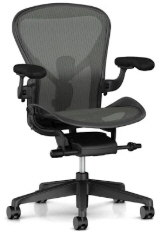
Seating Position. Raise so your feet are flat on the floor and thighs level. Seems weird to begin with, but if you don’t your knees and ankles will not thank you a few weeks in. I am lucky enough to have spent an entire work bonus on a Herman Miller Aeron chair … and after over 10 years working full-time from it … and I am in good shape. It’s commonly accepted as the best, but is pricey, and looking at a few reviews other chairs are now excellent too.

Get a keyboard. Laptop keyboards suck for long periods of use, wrists get sore and knuckles ache. I’ve never used a wrist-rest but they’re still around so consider one if you need.

Use a Mouse. Trackpads/touchpads are nice but a poor for complex/precision work and again no good for longer periods use. The new wave of gaming mice available are nicely designed and have a solid feel. They’re usually wired (shock!) with wireless ones quite expensive, but have hugely advanced speed/sensitivity, quality switches and useful customization short-cut options. I use a simple gaming mouse (without flashing lights) at home, and a traditional mouse when out.

Conference Call Meetings: Create High Quality Agenda and Minutes

I find the best meetings are well-defined beforehand. The purpose is clear from the outset, leaving to a quicker time to a clearer and more solid result. Outcome-driven meetings feel more positive and are simpler to arrange too.

Use the following to define an Agenda.

  • Questions or Tasks to be discussed, and ideally why a meeting is needed. Carefully consider scope … try to cover too much and people loose focus. Use a series of small discrete meetings if needed.
  • Roughly what you think the expected outcome might look like.
  • Include Ownership of each topic – who will drive the discussion.
  • Include Outcome Assignment – who is up to address each item.
  • Any recommended pre-meeting reading/preparation.
  • Links to specific related material.

Once the meeting wraps up, send a short email (or create a similar record) with bullet points which summarizes the outcomes. Copy the agenda in and for each item summarize the discussion and the outcome and next steps. If it’s your meeting, you send the minutes, always within 24hours.

Conference Call Meetings: Starting a Project

At the start of a project when many people are remotely located (including from home) it is easy to get sucked into a time-drain succession of meeting-after-meetings without little real demonstrable decisions or progression to show. Meetings are poorly defined, decisions are not recorded clearly, and tasks are not well defined and allocated.

Here is my seven step suggestion to avoid this:

  1. One person is responsible for the completion of project definition.
  2. This person (“definition owner“) states the objective/s, potential approaches, and delivery date estimates in a simple document.
  3. A “Review Team” of stakeholders considers this document and recommend any changes. This can be done in specific meetings or independently using collaboration tools. Adjustments are completed and locked.
  4. The definition owner then expands on this, turning it into a step-by-step high-level project plan.
  5. Again – the Review Team assess the plan and any changes are made immediately. The plan is then locked.
  6. In the final expansion, the definition owner refines the plan into a full detail specification, defines scope, adds work estimates and assignments.
  7. Final appraisal from the Review Team and gives explicit sign-off.