
Like many people, I finally took the plunge and replaced my aging Windows laptop with a shiny new MacBook Pro. I had delayed on this as couldn’t face the admin and logistics of resetting things up and (I am slightly ashamed to admit) learning the MacOS. Through this ‘journey’ I thought it would be nice to share a few things I encountered so far:
Keyboard. Why are @ and ” symbols the complete other side of the keyboard now? Maybe it’s a US key layout or something, but it’s annoying to get used to. Also, where is the home, end and even the delete keys? Backspace is there but editing text requires both directions. I found that control+d does delete … but it’s fiddly to get used to. I even tried plugging in my old keyboard but that was worse as it really didn’t like most of the non-letter keys. I could map function keys or combination presses, but its a pain.
Desktop. The Desktop concept isn’t quite the same – for example the menus weirdly disassociate itself with the application window. I am sure this is fine, I am just not sure why this is helpful.
Files. Without a File Manager (i.e. Windows Explorer) it proved hard to find anything that I didn’t copy to /Documents/ or another of the Finder favorites. I eventually worked out how to add the MacintoshHD (under Finder – Preferences from the menu bar) as a location and make finder fully show folders and files.
Command vs Control vs Option. The command button for most shortcuts is OK, but I had to print out a list to learn them (beyond basic cut-copy-paste etc). Not sure when I use the various left-of-spacebar buttons, while cntrl on Windows seemed logical. I also often used to use ‘minimize-all’ by right-click the Windows tray … on mac this is finger-twisting combo of Option-Command-H.
Installing Software. This seems to sometimes work completely, other times you get a package (pkg) file you then have to execute. Programs also don’t always appear under Applications in finder. Yet to discover consistency to suggest cause. I also found ‘crossover‘ which allows windows programs to run in a container on macOS … something I think I’ll avoid for now and learning to use some new tools – replacing things like notepad++, graphics apps, and my favorite IM client.
Display. My (old) additional display doesn’t have a HDMI port, but luckily I had a DVI-D to HDMI converter, so plugged that in. On startup it’s a bit of a pain to have to open the laptop lid, turn it on, login via the laptop keyboard, await recognition of the second screen, sometimes have to ‘Gather Windows’ using the System Preferences-Display, and finally close the laptop lid. Another weirdness on display is that on the Display system preferences page, if you press the Option button a hidden button to discover displays appears. Obviously this should occur automatically, but forcing this can be helpful. Weird buttons are hidden like this!
Docking. Oh how I wish I had a mac docking station! These kind-of exist but are crazy expensive – not sure why. In addition to painful startup process as above, it would be nice to docking-undock quickly when leaving in a hurry. Surely pulling and pushing on the ports every time will add wear.
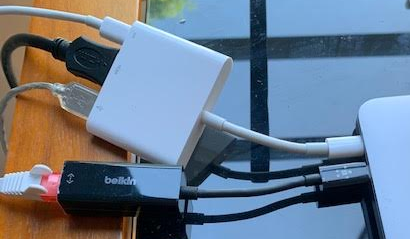
Ports and Networking The keyboard and mouse are Bluetooth so we don’t need ports – but I still want to plug stuff in, but the macbook I have has only two USB-C ports (more expensive models have 4) and one is for power! So I got an Apple USB-C Digital AV Multiport Adapter. This gives me a HDMI port, a USB port, and a USB-C port. I also got a Ethernet-to-USB-C adapter too which I thought I could connect to the Multiport. After weeks of using wifi only I thought I really should get the Ethernet working. Further hours of messing about with the network software/config things were listed but remained inactive. I eventually discovered that my wiring setup simply doesn’t work and had to plug the Ethernet-to-USB-C directly into the second laptop port, and plug the power into the Multiport. Simple but far from obvious!
 Working From Home